Music Lessons, Fitness Classes, Meditation Classes
Even if you are using your computer’s internal mic and speakers, you should adjust the default settings in Zoom to optimize your audio stream. You can now adjust the settings on mobile devices as well as the desktop version. PLUS Zoom recently introduced a High Fidelity Music Mode option too.
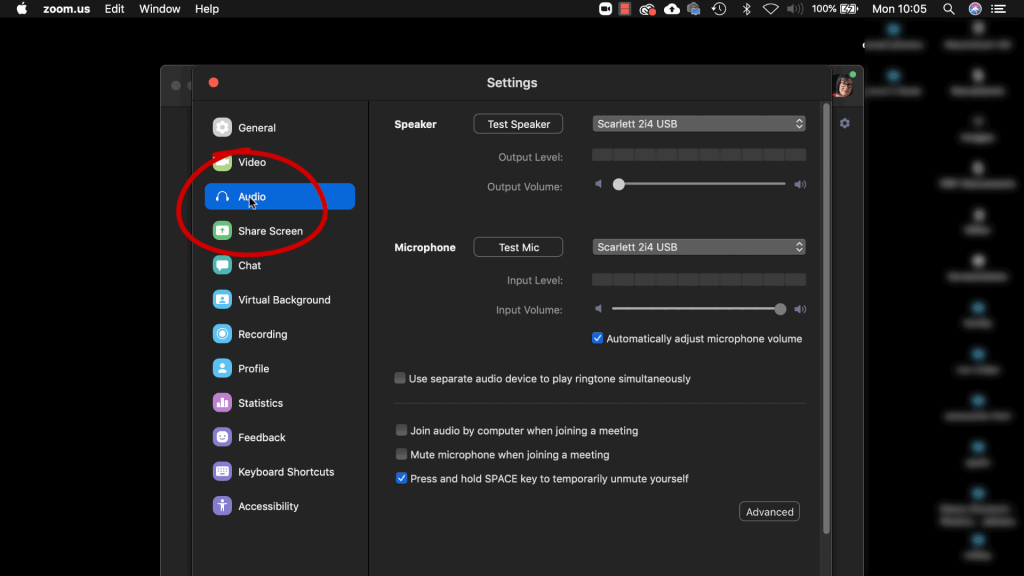
Start up the Zoom Client on your desktop, and then open up the settings by clicking the gear icon.
Choose Audio Click on the Audio Tab
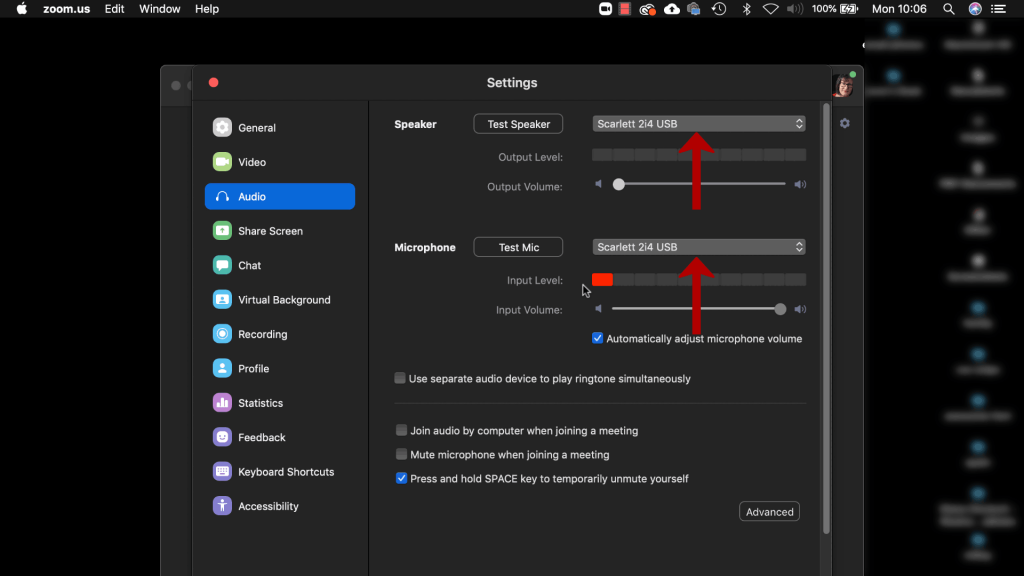
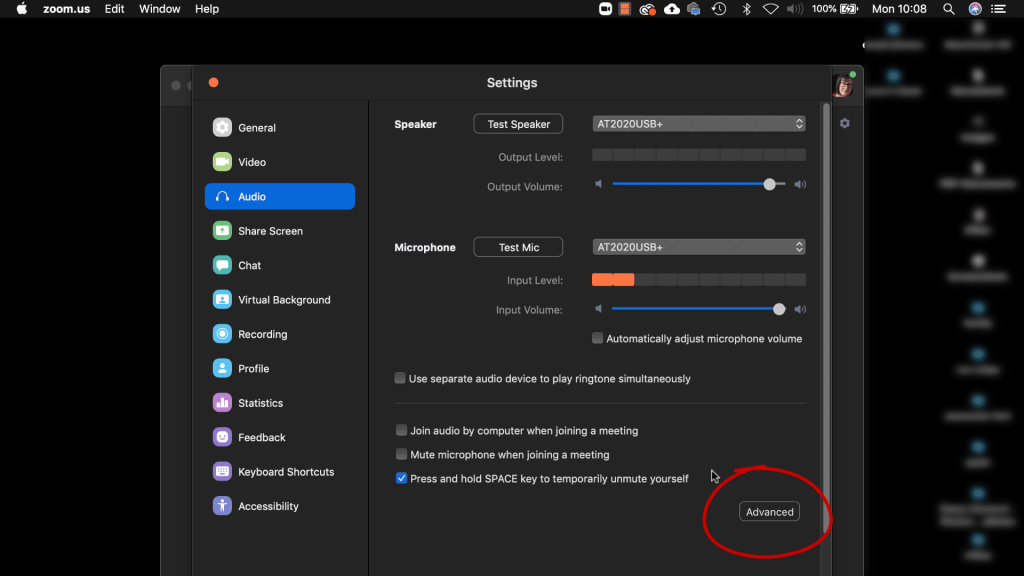
Select the correct Speaker and Microphone
The microphone is the device you will be speaking and playing into, the speaker is where you will hear the sound of your student or collaborator.
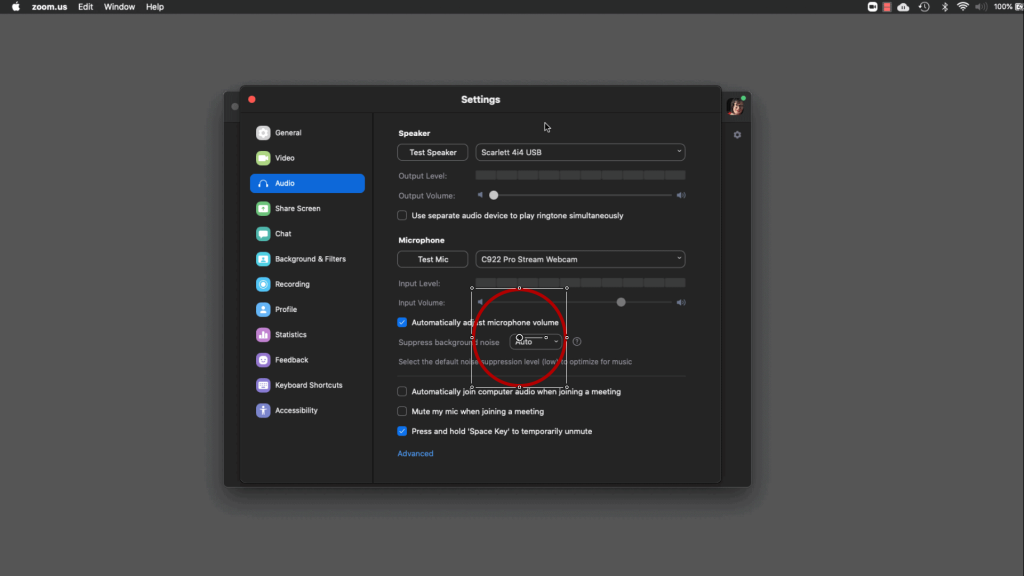
Get Control of Your Volume
Uncheck the ‘Automatically adjust microphone volume’ so that you can control the volume of your microphone.
Get Control of Your Volume
Uncheck the ‘Automatically adjust microphone volume’ so that you can control the volume of your microphone.
Access Advanced Audio Settings
Click the ‘Advanced’ Button to access the additional audio settings.
Enable Original Sound
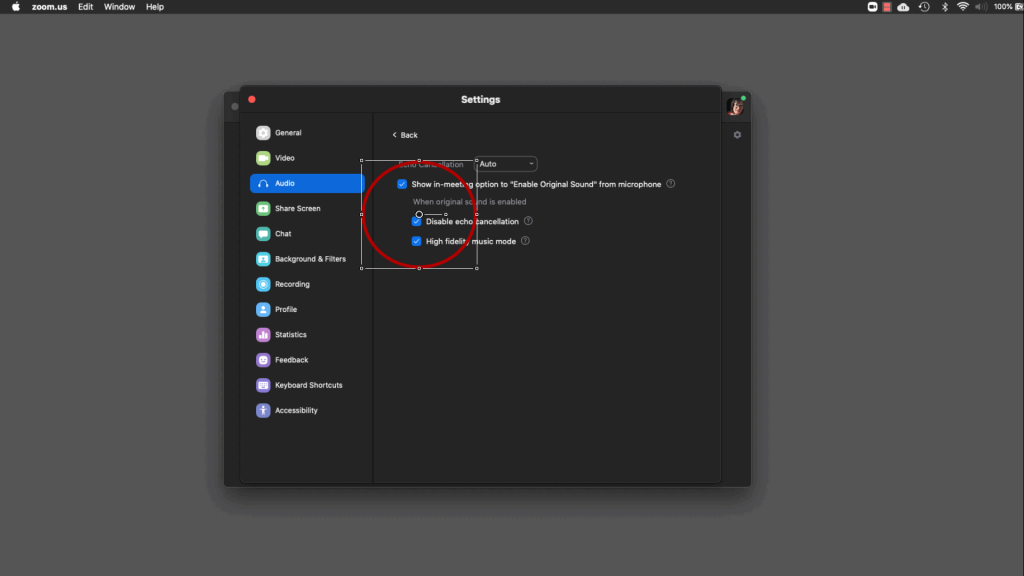
Make sure you enable ‘Show in-meeting option to “Enable Original Sound” from microphone. This will turn off what Zoom calls ‘enhancements’ such as noise suppression and echo cancellation. These so-called enhancements are good for conference situations where you may have unwanted noise from air conditioning fans, chairs scraping etc, but when you are trying to play music, they make your audio signal chop in and out.
Tick the boxes below to disable echo cancellation and enable High Fidelity Audio Mode.
Leave the dropdown box next to the Echo Cancellation above on Auto.
Use Computer Audio
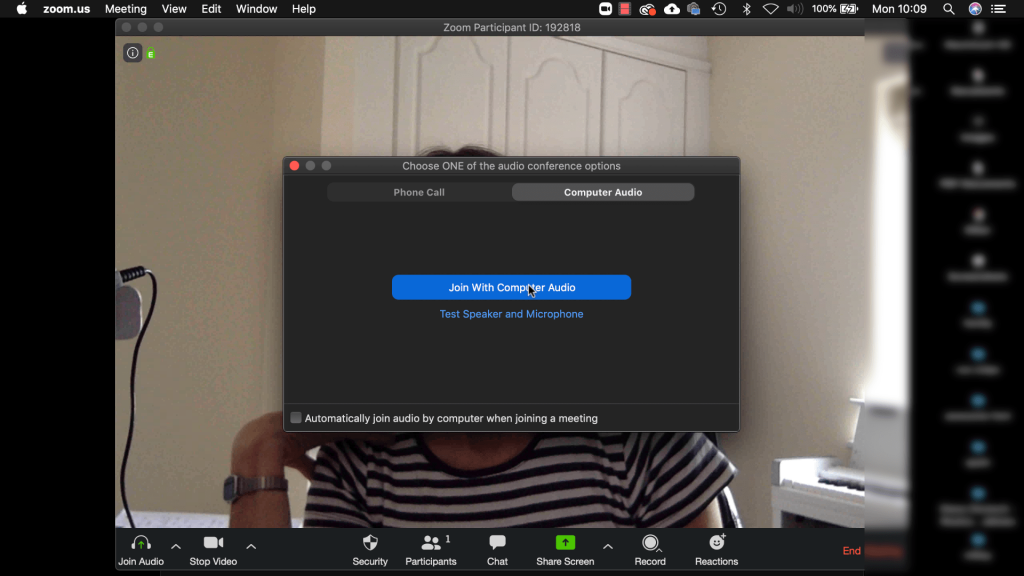
When you begin a new meeting choose ‘Join with Computer Audio’
Turn On Original Sound
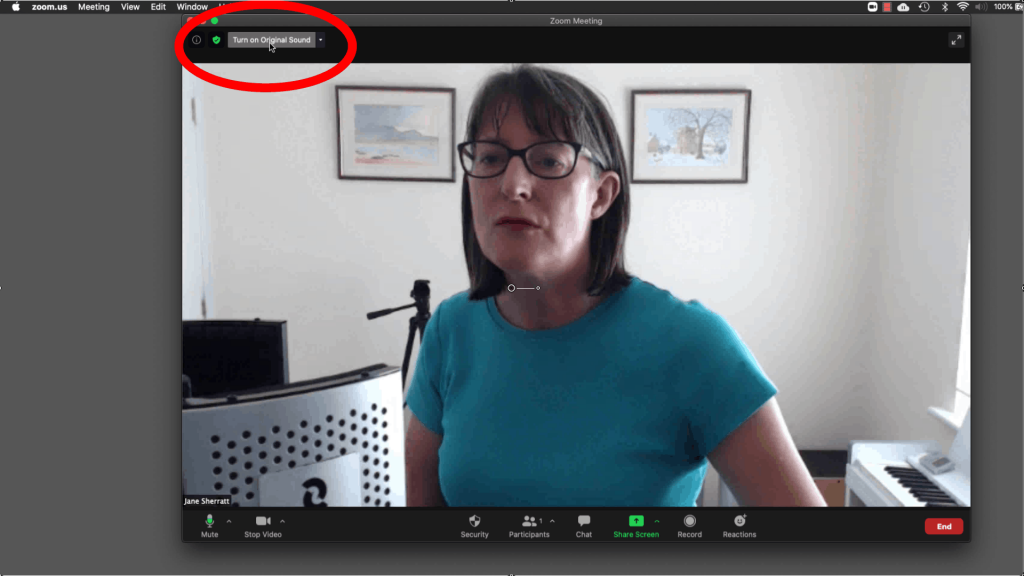
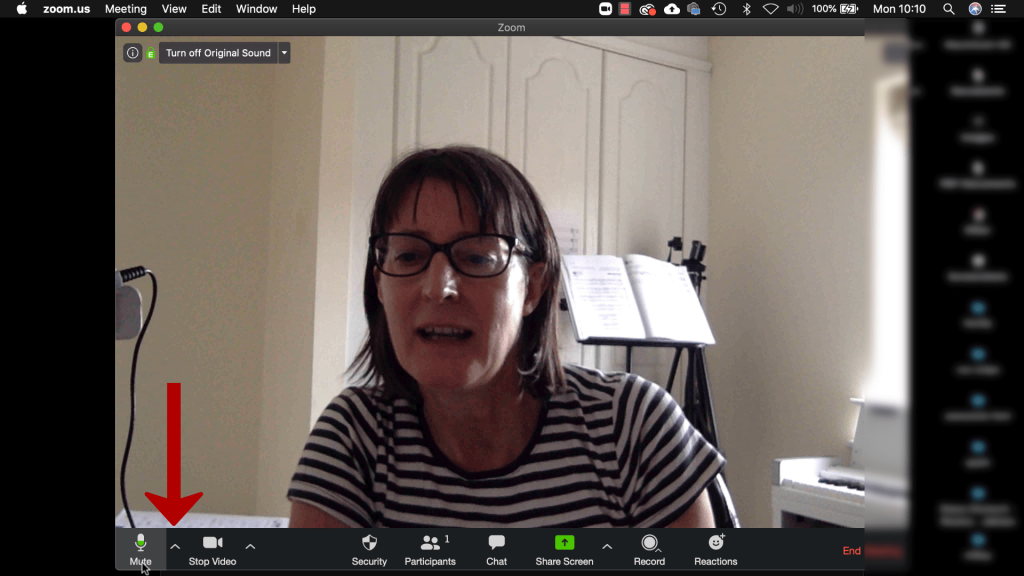
You should see a message in top left that says “Turn On Original Sound”. Make sure you click this to enable the High Fidelity Music Mode.
You Can Check Audio Settings From Within Meeting
At any point during your Meeting you can check out the audio settings by clicking the up arrow next to the mic. You can check which devices you are using, you can test the audio, and you can access the Audio Settings.
Stereo Mode in Zoom – Desktop Client Settings
If you now navigate to the advanced audio settings, you will see there is a new option to Use Stereo Audio
Stereo Mode in Zoom – Web Portal Settings
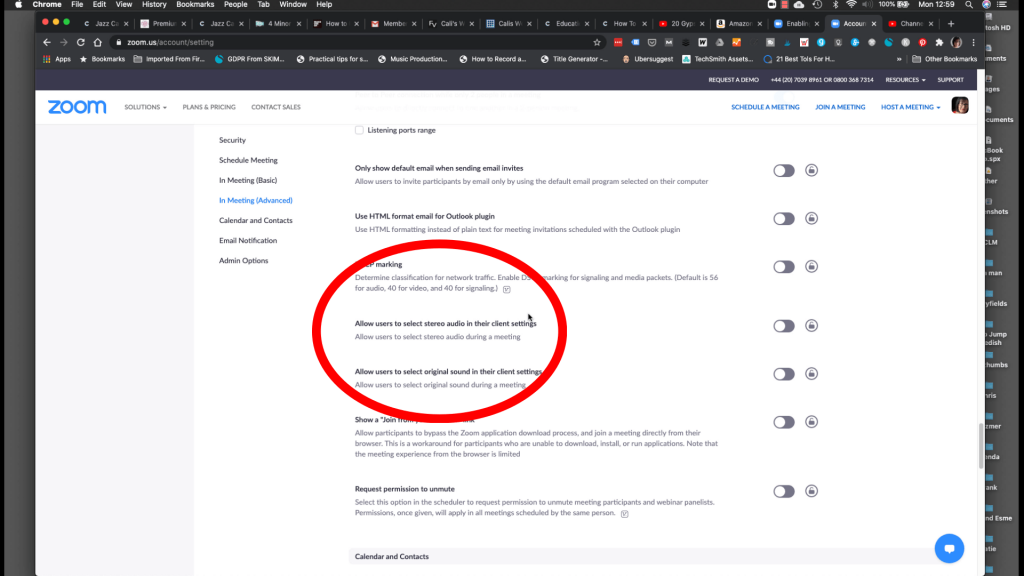
You will need to log in to the Zoom Web Portal at www.zoom.us then navigate to account management -> account settings. Scroll down until you find the option to Allow Users To Select Stereo Audio and turn this on.
Zoom Mobile App Settings
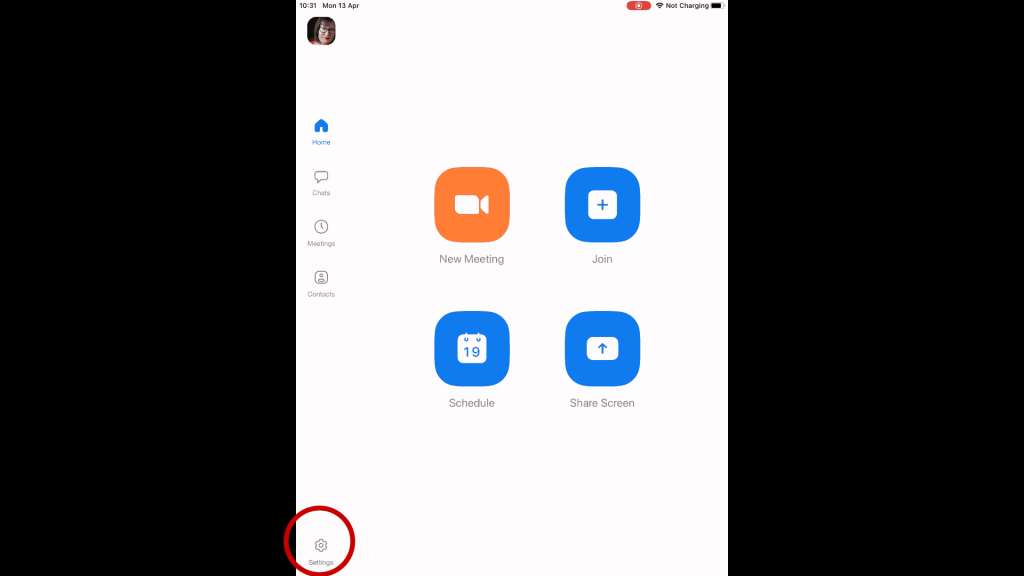
If you are using a mobile device, Open up the Zoom app, click the Settings gear icon.
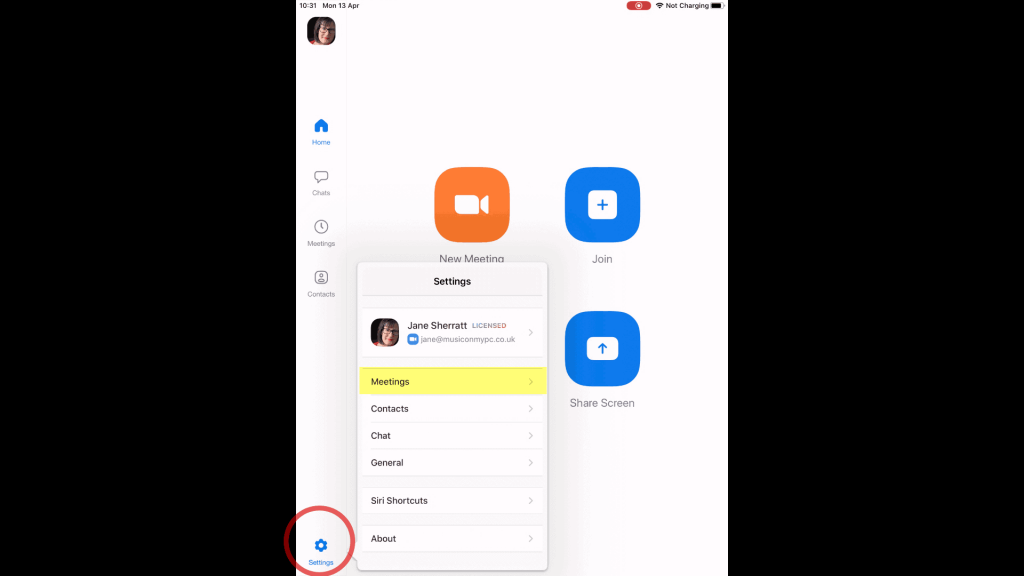
Select Meetings
Select the Meetings … option from the Settings pop-up window
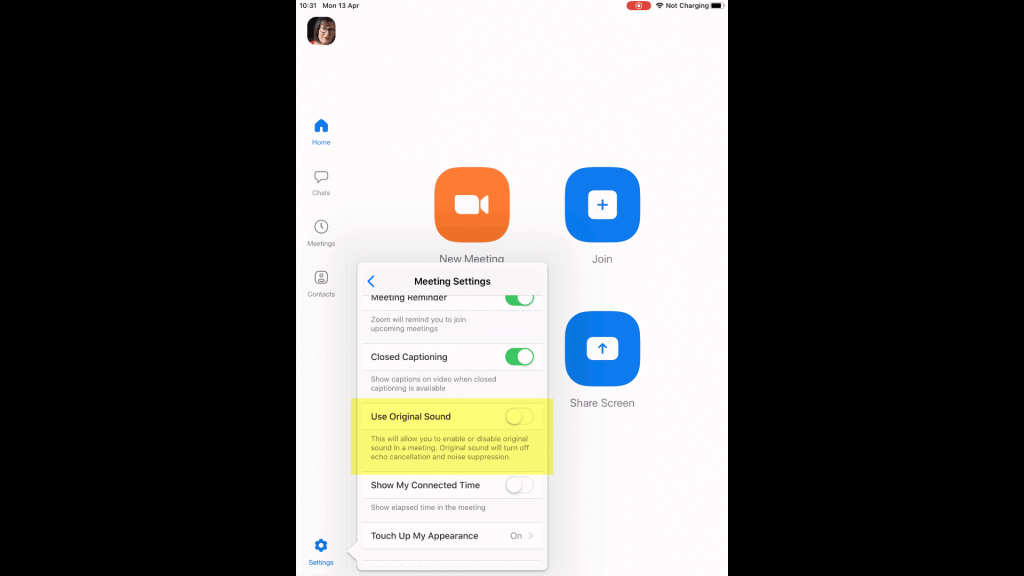
Scroll Down to ‘Use Original Sound’
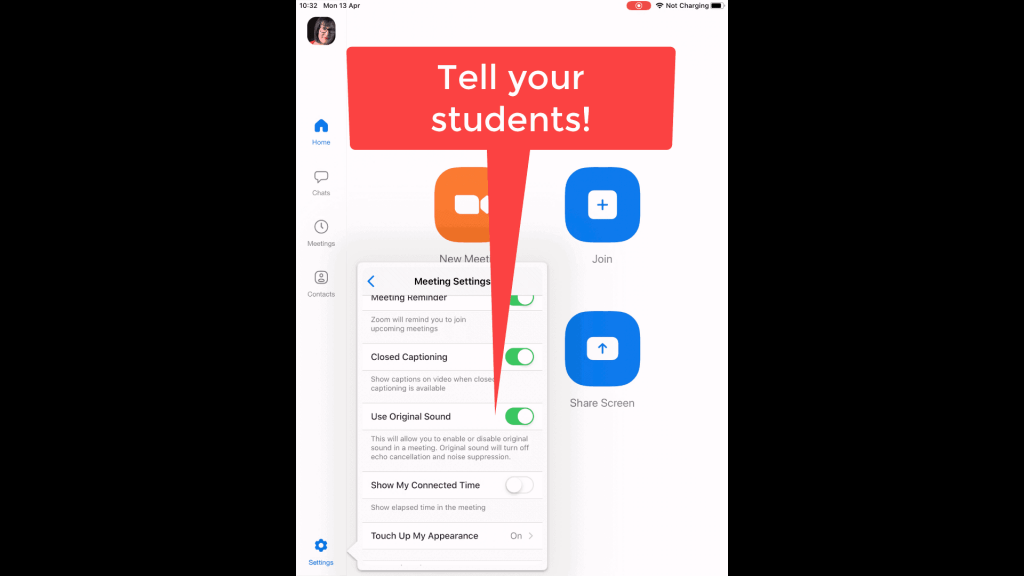
Scroll down through the Meeting Settings to the option to “Use Original Sound”, and slide on to activate. The mobile device will then turn off the noise cancellation settings that disrupt audio.
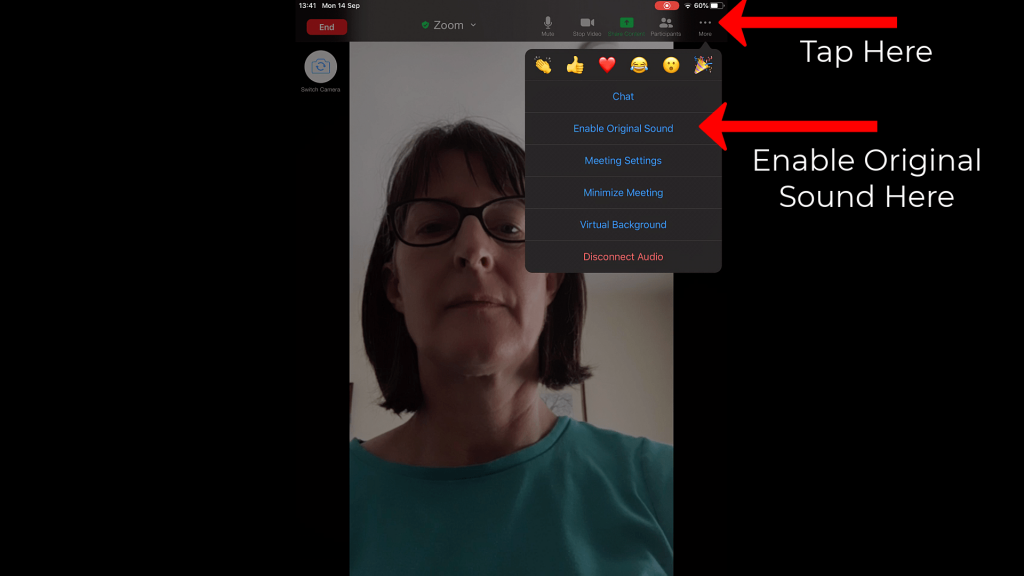
Zoom Mobile App – Enable Original Sound in Meeting
Every time you begin a new meeting in Zoom on your mobile device, you will have to Enable Original Sound within the meeting. This is not the default setting!
Tell Your Students/Collaborators
Make sure your students or music collaborators know about the audio set-up in Zoom too!